A WooCommerce health dashboard inside WordPress: the free MageSentinel plugin, screen by screen
Most WooCommerce problems are visible in the store long before anyone complains: a payment method with a falling success rate, an hour with no orders, a certificate about to expire, a plugin update waiting. The free MageSentinel plugin puts all of that on one page inside WordPress. Here is every part of it, with screenshots from a test store.
What the plugin is
MageSentinel Monitor is a free WordPress plugin. Install it from Plugins → Add New, activate it, and a MageSentinel page appears in the admin menu, plus a small widget on the WordPress dashboard. It works on its own; connecting it to a MageSentinel account adds hourly test purchases from outside the store.
It reads what WooCommerce already stores: orders, payment methods, shipping zones, scheduled actions, the catalog. Nothing about shoppers leaves the site, and setting changes are logged by name only, never by value. The page follows the WordPress colour scheme or can be switched to a dark theme, as in these screenshots.
Orders and revenue at a glance
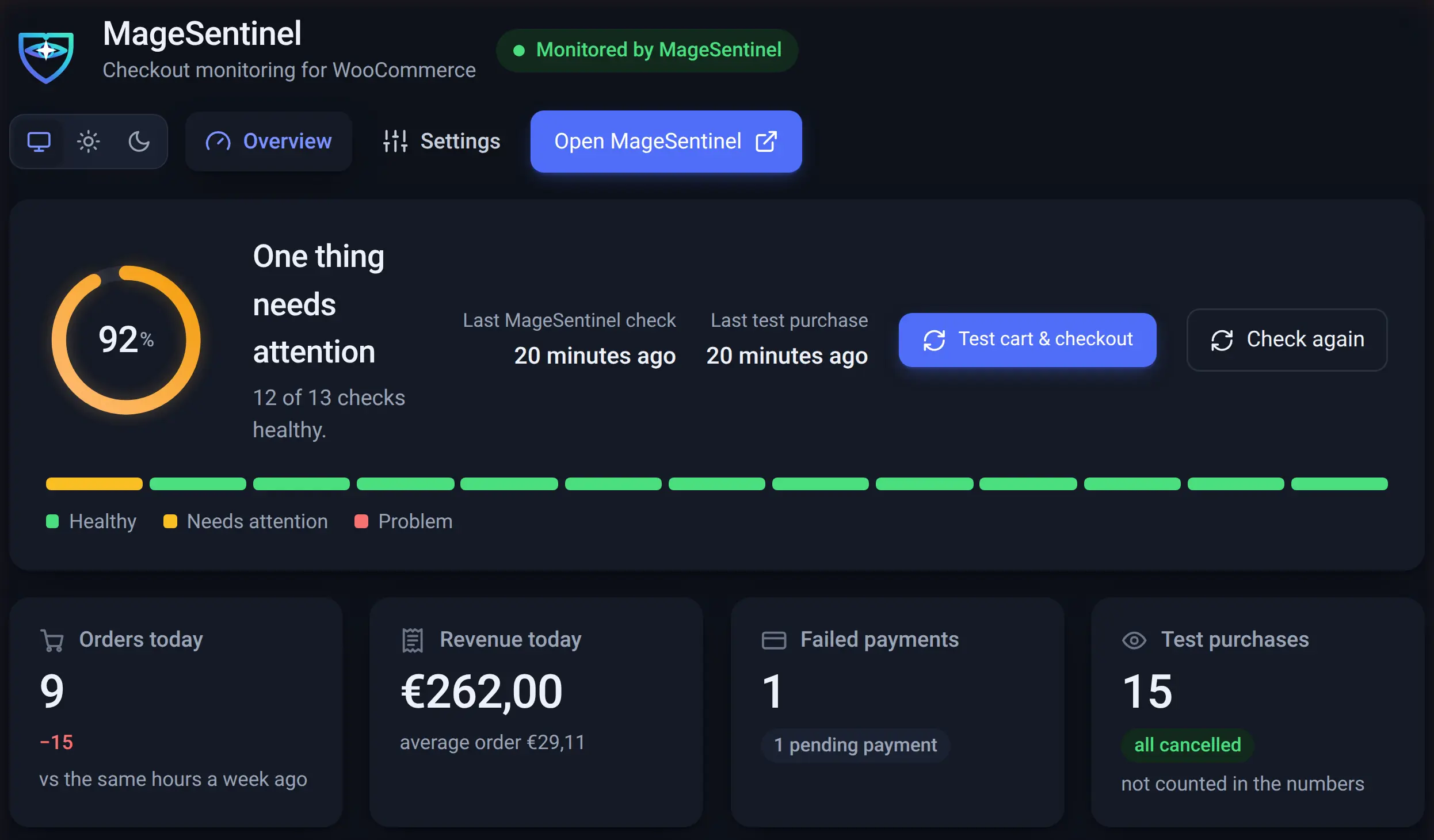
The top cards answer the first question of the day: are orders coming in? Orders and revenue today are compared with the same hours a week earlier, so a quiet Tuesday morning does not look like an outage and a real drop does.
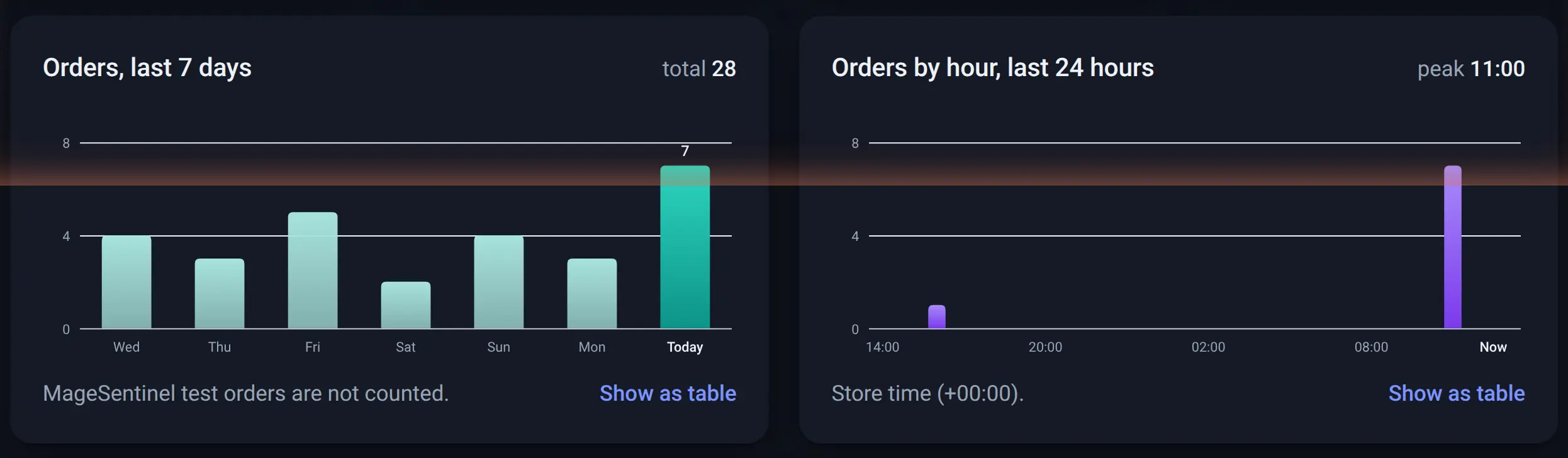
The two charts show orders per day for the last week and per hour for the last 24 hours. A store that normally takes a few orders an hour and suddenly shows none is the most common sign of a broken checkout, and the hourly chart makes that visible without opening WooCommerce reports.
Health checks every 15 minutes
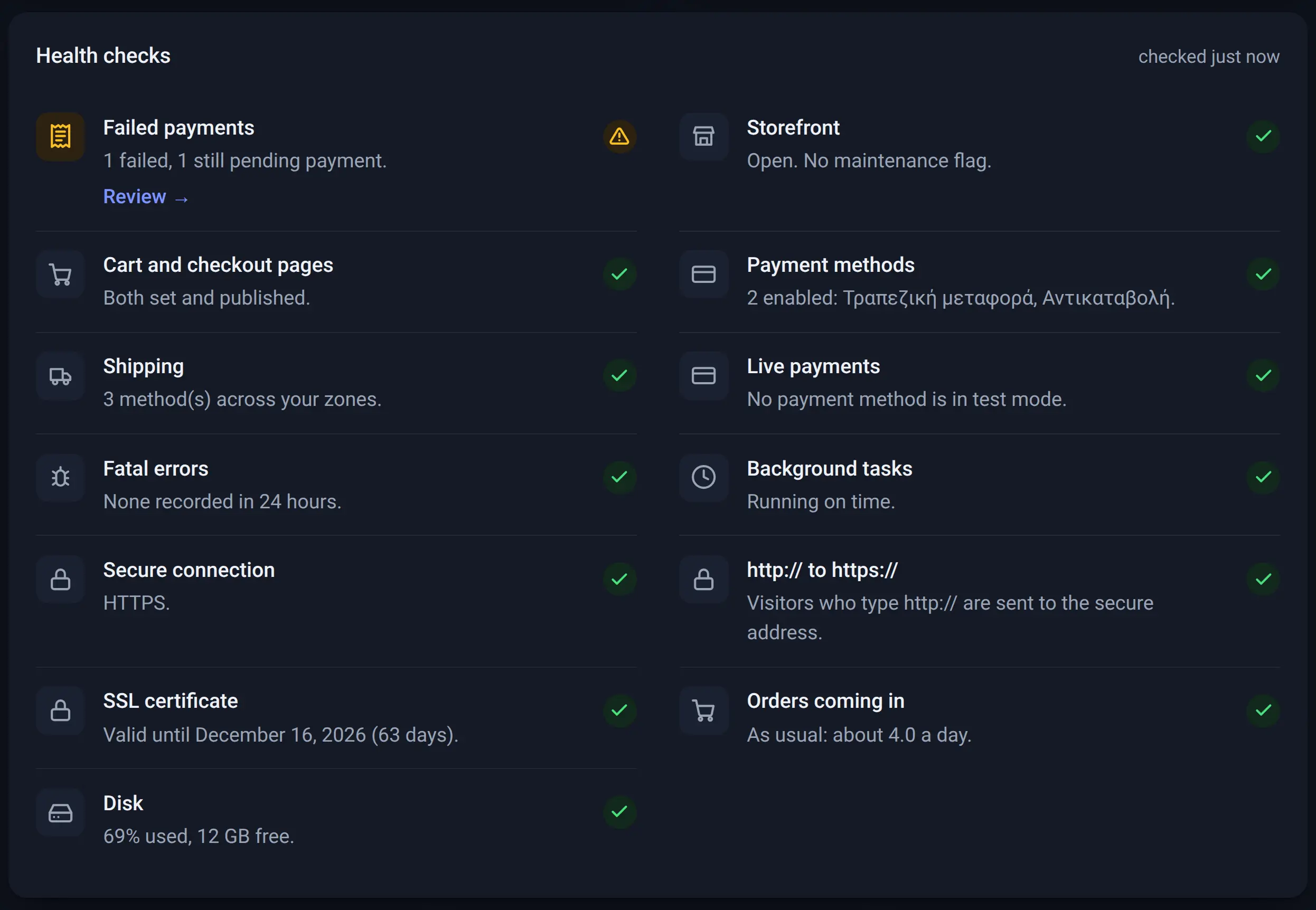
Thirteen checks run every 15 minutes: storefront and maintenance mode, cart and checkout pages, enabled payment methods, shipping methods, payments left in test mode, fatal PHP errors, background tasks (Action Scheduler), HTTPS and the http to https redirect, the SSL certificate expiry date, whether orders arrive at the usual rate, and disk space.
Each check is green, amber or red, and the score at the top is the share that is healthy. Amber items link to the screen where you fix them, for example the failed orders list.
Catalog, updates, performance and security
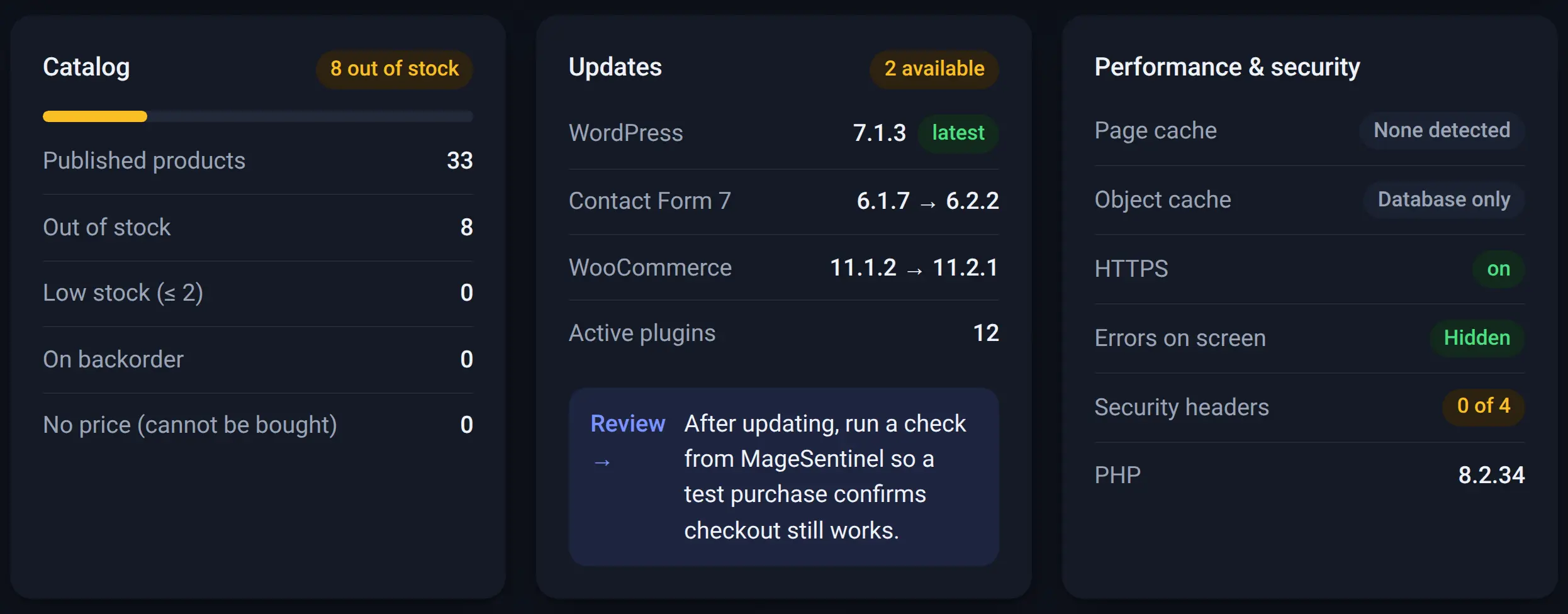
The catalog card counts published products, out of stock, low stock, backorders and products with no price that cannot be bought. The updates card lists WordPress, WooCommerce and plugin updates waiting, and reminds you to run a test purchase after updating; see updating WooCommerce plugins safely.
Performance and security shows page and object caching, HTTPS, whether PHP errors are shown on screen, how many security headers are set and the PHP version. For what to do about vulnerable plugins, read WooCommerce plugin vulnerabilities.
Payments by method and the checkout funnel
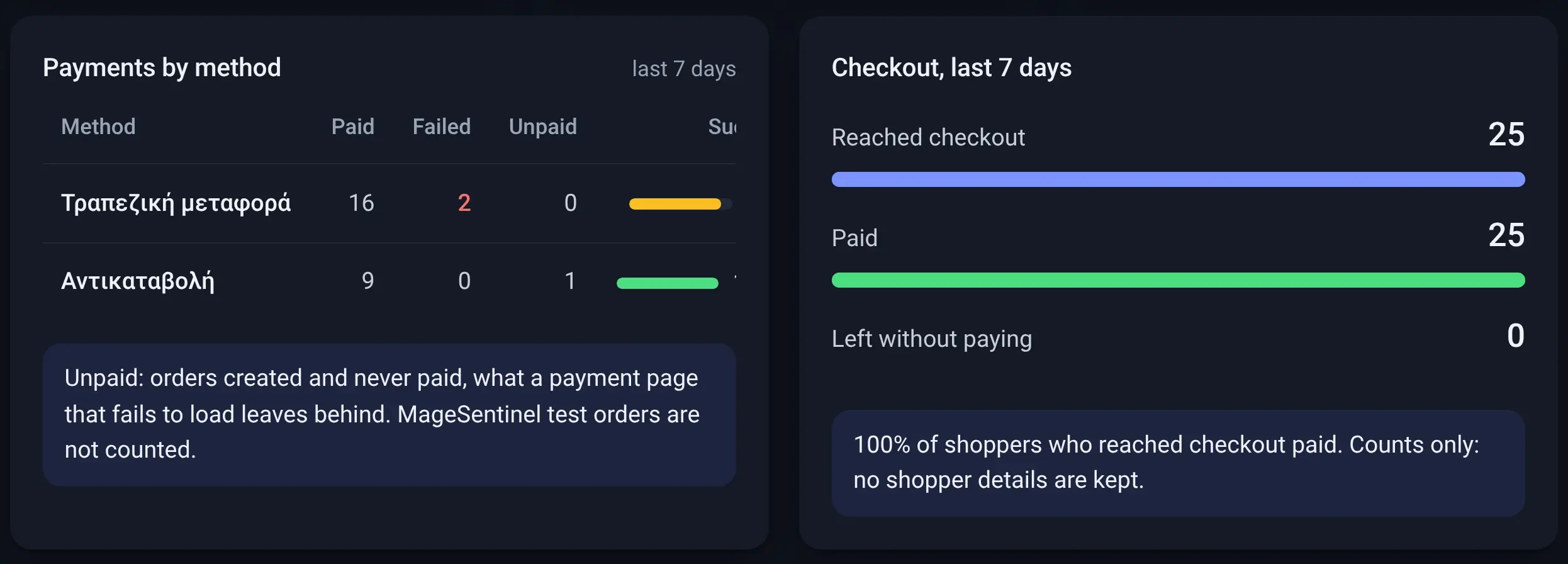
Payments by method shows, for the last 7 days, how many orders each method paid, failed or left unpaid, and its success rate. A card gateway dropping from 98% to 80% is a problem worth an hour today, even if orders still arrive through other methods. See WooCommerce payment gateway failing.
The checkout funnel counts shoppers who reached the checkout and how many of them paid. It keeps counts only, no shopper details.
Revenue trend, speed and health history
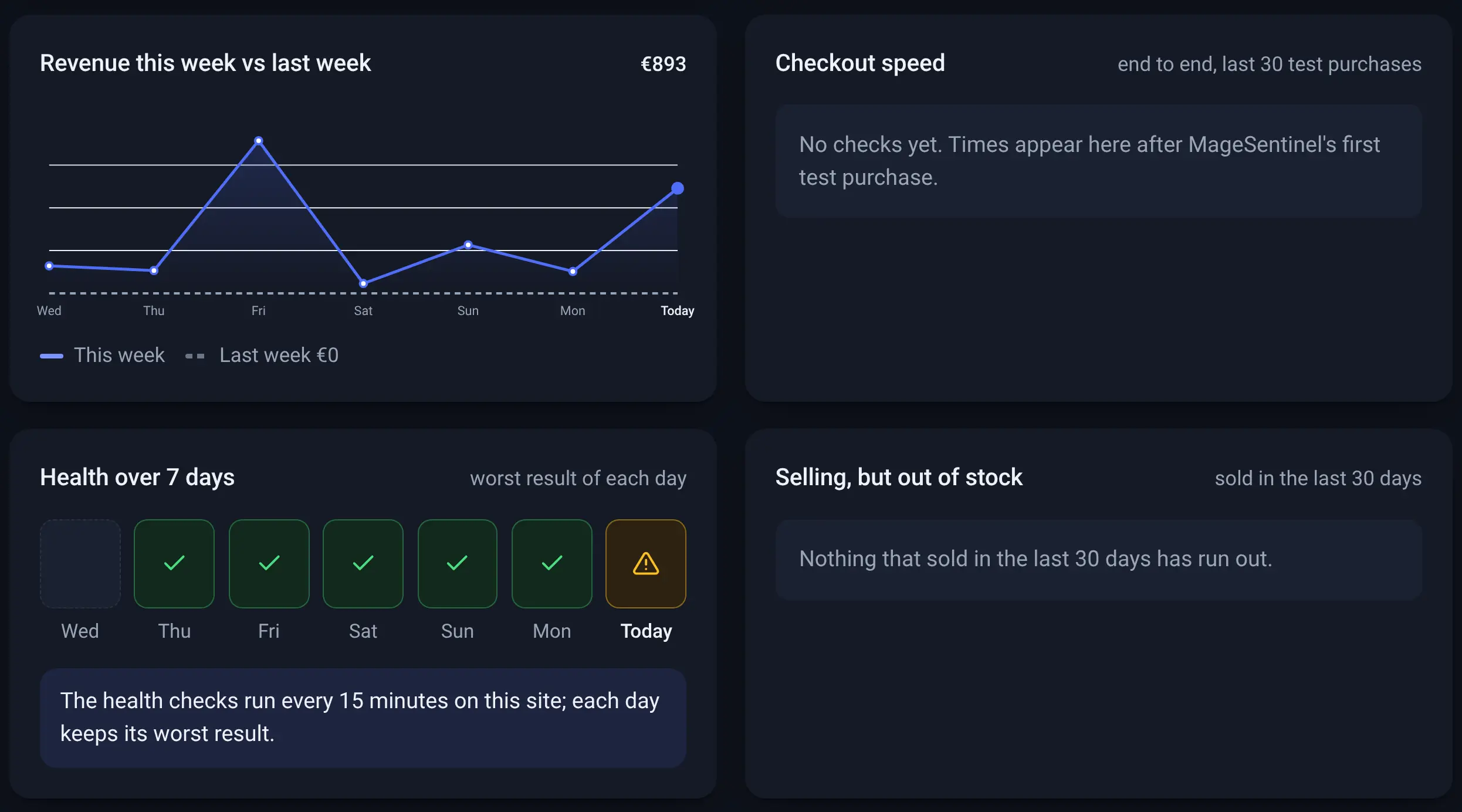
Revenue this week is drawn against last week, day by day. Checkout speed shows how long the end-to-end test purchases took, so a slow payment page shows up as a trend, not a guess.
Health over 7 days keeps the worst result of each day, which answers "was anything wrong over the weekend?" at a glance. Selling, but out of stock lists products that sold in the last 30 days and have now run out.
Test purchases and setting changes
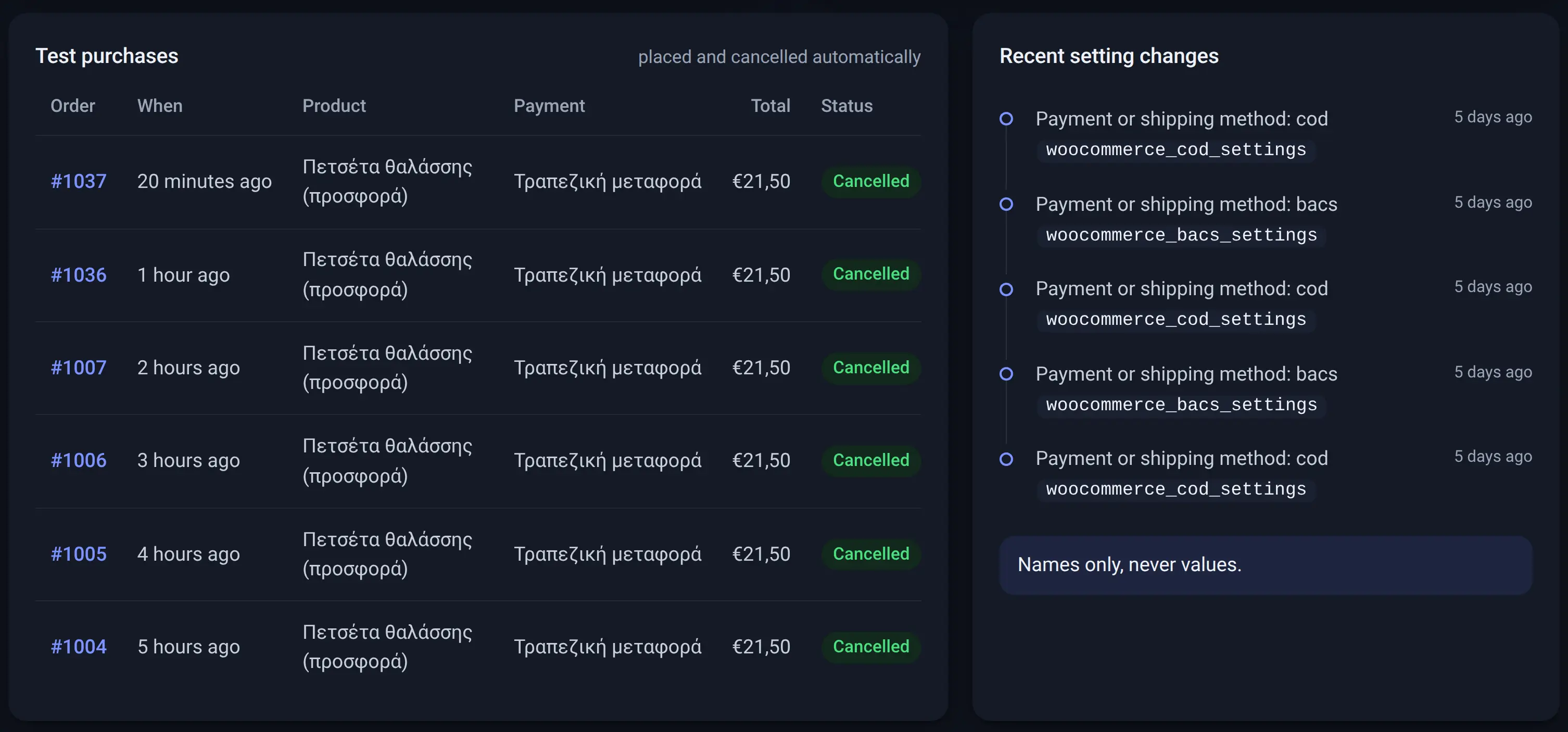
When the plugin is connected to MageSentinel, a real browser places a test order from outside the store, and the plugin cancels it automatically and keeps it out of every number above. The list shows each test order, product, payment method, total and status.
Recent setting changes lists which payment, shipping and checkout settings changed and when, by name only. When a checkout breaks right after someone "just changed one setting", this is where you see it.
What it cannot see on its own
A plugin inside WordPress sees the database and the server, not what a shopper sees in a browser: a JavaScript error on the checkout, a payment iframe blocked by a firewall, a CDN serving an old page. That needs a test from outside, like the free WooCommerce checkout checker or an hourly MageSentinel monitor.
Use both: the plugin for the store's own numbers and settings, the outside test for the purchase itself. The walkthrough of MageSentinel on WooCommerce shows the outside half.
Common questions
Is the MageSentinel WordPress plugin free?
Yes. The plugin and its health checks are free on WordPress.org. Connecting it to a MageSentinel account adds hourly test purchases from outside the store.
Does the plugin send customer data anywhere?
No. It reads WooCommerce data inside your site and shows counts. Setting changes are logged by name only, never by value.
Do test purchases count in my sales numbers?
No. Test orders are cancelled automatically and left out of the orders, revenue and payment numbers.